Contents
- How It Works — Overview
- The 4-Step Voucher Flow
- Step 1 — Client Requests a Voucher
- Step 2 — You Approve the Request
- Step 3 — Client Uploads Proof of Payment
- Step 4 — You Confirm Payment & Issue Voucher
- Scanning & Redeeming Vouchers at the Spa
- Your Voucher Spreadsheet
- Emails You'll Receive
- Setting Up Your Bank Details
- The Management Dashboard
- The Bookings Desk (Day-Ops)
- Monthly Specials
- Frequently Asked Questions
- Quick Reference Card
1. How It Works — Overview
Your gift voucher system is fully automated. Clients request vouchers from your website, you approve them by setting the price and choosing your bank account, and the system handles everything else — EFT payment instructions, proof of payment collection, PDF voucher generation, and delivery.
The voucher flow runs entirely from your email. Each email has a clear action button that opens a simple form on the website. The Management Dashboard (see section 11) gives you the full picture — voucher list, the bookings desk, and monthly specials — whenever you want it.
Bookmark www.orientalspa.co.za/voucher-scan on your phone's home screen. You'll use this page to scan and redeem vouchers when clients visit the spa.
2. The 4-Step Voucher Flow
1. Request Voucher
Client fills form on website with recipient details
2. Approve & Set Price
Click ACCEPT REQUEST, enter the voucher price, and choose your bank account
3. Upload Payment Proof
Client receives EFT details, pays, uploads proof
4. Confirm Payment
Click CONFIRM PAYMENT in your email
Voucher Issued
PDF voucher with QR code generated and emailed to client
3. Step 1 — Client Requests a Voucher
What the Client Does
The client visits www.orientalspa.co.za/gift-voucher and fills in a request form with:
- Their name, email, and phone number
- The gift recipient's name
- A preferred treatment (optional — they can choose "Any Treatment")
- Any special notes or requests
A unique voucher reference (e.g. OS-2603-001) is created. The client receives a confirmation email. The request is logged in your Google Sheet.
You Receive an Email
You'll receive an email at [email protected] with the subject:
Gift Voucher Request OS-2603-001 — [Recipient Name]
The email shows all the details and a big green ACCEPT REQUEST button.
If you don't want to approve a request, simply ignore the email. You can also reply directly to the client from the email to ask questions first.
4. Step 2 — You Approve the Request
Click "Accept Request" & Set the Price
When you're happy with the request, click the ACCEPT REQUEST button in the email. An approval form opens showing the full request details.
On the approval page you'll see the client's details (name, email, phone), the recipient's name, requested treatment, and any notes. Below that are two sections you need to fill in:
Section 1 — Set the Voucher Price
- A price input field where you enter the amount (in Rands)
- Quick-select buttons for common prices: R250, R350, R500, R650, R800, R1000, R1200
- Or type any custom amount — this is the exact amount the client will be asked to pay
Section 2 — Choose Your Bank Account
- If you've saved bank accounts before, they appear as tabs — tap one to select it
- If no accounts are saved yet, fill in your bank name, account holder, account number, branch code, and account type
- Click "Save this account" to remember these details for next time
- You can save up to 2 accounts (e.g. personal and business) and switch between them
- To change saved details, edit the fields and click "Update saved account"
- To remove one, click the Delete button next to the save button
Once both sections are filled in, click "Approve & Send Payment Details".
The client receives an email with the exact amount to pay, your selected bank account's EFT details, and an UPLOAD PROOF OF PAYMENT button. The amount is stored in your spreadsheet and will appear on the final voucher PDF.
Clicking Accept multiple times is safe — the system won't send duplicate emails. It will simply show "already approved". The price you set is final — if you need to change it, update the "Amount (R)" column in the spreadsheet and notify the client manually.
The very first time you approve a voucher, enter your bank details and click "Save this account". From then on, your details will be pre-filled automatically — just select the tab and approve. You can also update or add a second account at any time.
5. Step 3 — Client Uploads Proof of Payment
Client Makes EFT & Uploads Proof
The client receives your bank details and makes the EFT transfer using the voucher reference as the payment reference. They then click UPLOAD PROOF OF PAYMENT in their email and upload a photo or screenshot of their payment confirmation.
The proof image is saved to your Google Drive (in a folder called "Oriental Spa - Payment Proofs"). You receive an email with a link to view the proof.
You Receive a "Payment Proof Received" Email
You'll get an email with:
- The voucher reference and client details
- A "View File" link to check the payment proof
- A big green CONFIRM PAYMENT & ISSUE VOUCHER button
Always check your bank account to verify the payment has actually been received before confirming. The proof image is just what the client uploaded — verify it against your actual bank statement.
6. Step 4 — You Confirm Payment & Issue Voucher
Click "Confirm Payment & Issue Voucher"
Once you've verified the payment in your bank account, click the CONFIRM PAYMENT & ISSUE VOUCHER button in the email.
The system:
- Generates a personalised PDF gift voucher using your branded template
- Includes the recipient's name, treatment, amount, and a QR code for scanning at the spa
- Sets the expiry date (1 year from today unless you pick 3 months, 6 months or 2 years)
- Saves the PDF to Google Drive ("Oriental Spa - Vouchers" folder)
- Emails the PDF voucher directly to the client
- Updates the spreadsheet status to "ISSUED"
Sample voucher (actual voucher will include the client's details):
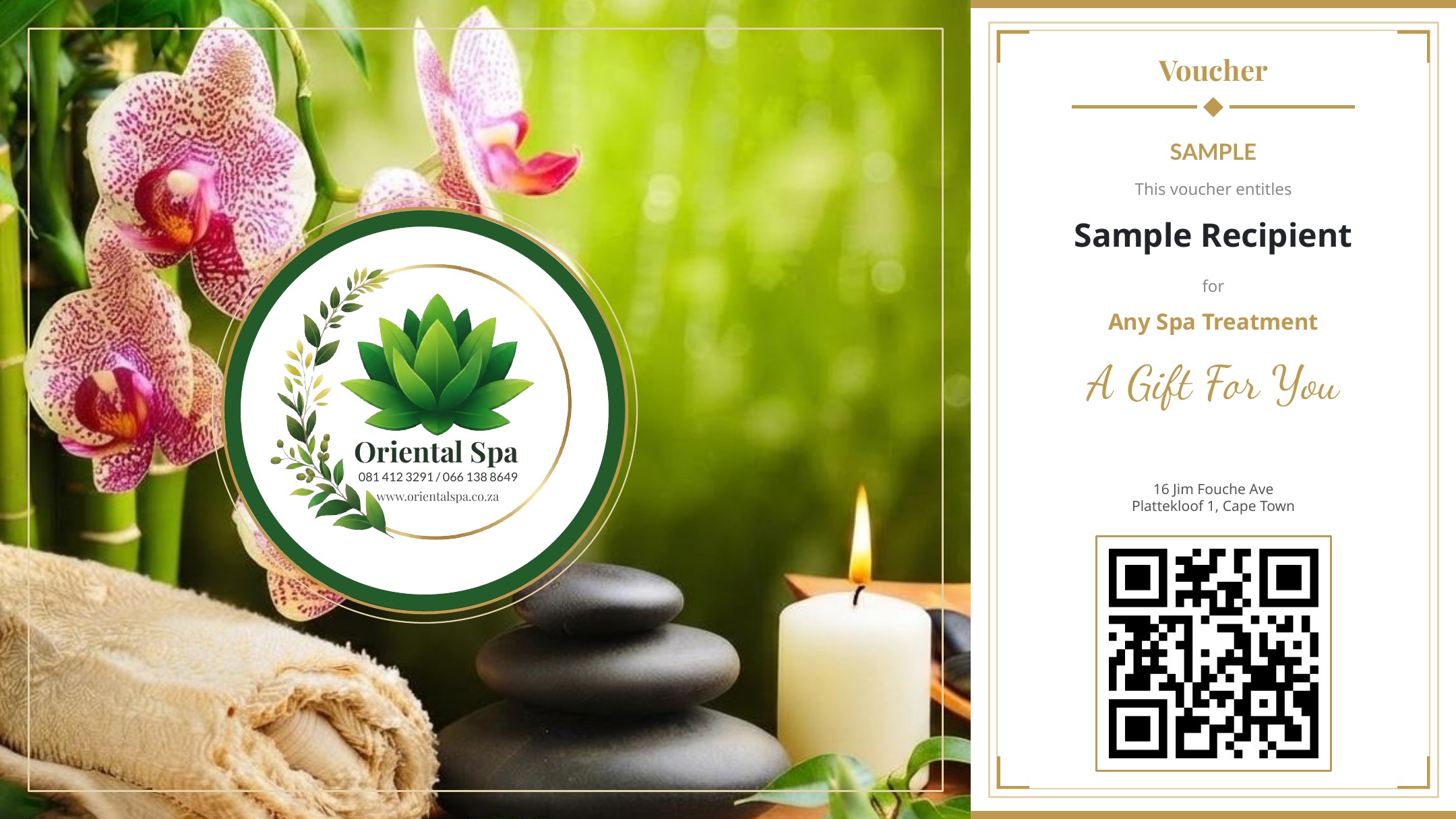
The recipient's name, treatment, amount, expiry date, reference number, and QR code are added automatically.
This step may take 10-15 seconds because the system is generating the PDF. Don't close the page — wait for the confirmation message.
After the voucher is issued, a "Resend Voucher PDF to Client" button appears on the confirmation page. Click it to regenerate and re-email the voucher PDF at any time — useful if the client lost the email or needs a fresh copy. You can also revisit the same confirmation link from your email to access the resend button.
7. Scanning & Redeeming Vouchers at the Spa
When a Client Brings Their Voucher
Each voucher PDF has a QR code in the bottom-right corner. When a client arrives at the spa with their voucher:
- Open the scanner — Go to www.orientalspa.co.za/voucher-scan on your phone or tablet
- Point your camera at the QR code on the voucher
- Review the details — The screen will show the recipient's name, treatment, expiry date, and whether it's valid
- Tap "REDEEM VOUCHER" to mark it as used
- Green = VALID — Voucher is good to use. Tap REDEEM.
- Purple = REDEEMED — Already used. Shows when it was redeemed.
- Red = INVALID — Expired, not yet issued, or not found.
On your phone, open www.orientalspa.co.za/voucher-scan in Safari or Chrome, then tap Share → Add to Home Screen. This creates an app icon for quick access — no app download needed!
Below the scan window you'll find a green home icon (returns to the dashboard's Bookings tab), a gold Vouchers button (opens the dashboard's Vouchers menu), and a green Bookings button.
Redemption is permanent and cannot be undone from the scanner page. Only tap REDEEM when you're ready to honour the voucher. If redeemed by mistake, you'll need to manually change the status back to "ISSUED" in the spreadsheet.
8. Your Voucher Spreadsheet
All voucher data is stored in your Google Sheet. You can view it anytime to check the status of any voucher.
| Column | What It Contains |
|---|---|
| Voucher Ref | Unique serial number (e.g. OS-2603-001) |
| Purchaser / Email / Phone | The person who bought the voucher |
| Recipient | The person the voucher is for |
| Treatment | Requested treatment (or "Any Treatment") |
| Status | Current voucher status (see below) |
| Amount (R) | Price you set when approving — shown on the payment email and voucher PDF |
| Payment Proof | Link to the uploaded proof image in Google Drive |
| Voucher PDF | Link to the generated voucher PDF in Google Drive |
| Expiry Date | When the voucher expires (1 year from issue by default; 3 months, 6 months or 2 years can be picked) |
| Redeemed At | Date and time the voucher was used at the spa |
Voucher Status Guide
| Status | Colour | Meaning |
|---|---|---|
| PENDING | Yellow | Client has requested — waiting for your approval |
| APPROVED | Blue | You approved — client has received EFT details |
| PAYMENT_RECEIVED | Orange | Client uploaded proof — waiting for your confirmation |
| ISSUED | Green | Voucher PDF generated and emailed to client |
| REDEEMED | Purple | Client used the voucher at the spa |
9. Emails You'll Receive
| When | Subject Line | Your Action |
|---|---|---|
| Client requests voucher | "Gift Voucher Request OS-XXXX-XXX" | Click ACCEPT REQUEST |
| Client uploads proof | "Payment Proof Received — OS-XXXX-XXX" | View proof, click CONFIRM PAYMENT |
| Daily (if any requests) | "Daily Contact Summary" | Review for awareness |
All emails come from [email protected]. If you're not receiving them, check your spam folder and add this address to your contacts.
10. Setting Up Your Bank Details
Managing Your EFT Details
When you approve a voucher request, you choose which bank account's details to send to the client. You can save up to 2 bank accounts and switch between them.
On the Approval Page
Below the voucher price field, you'll see the "EFT Payment Details" section with:
- Saved account tabs — click to switch between your saved accounts
- "+ New Account" tab — enter a different account's details (appears when you have fewer than 2 saved)
- Editable fields — bank name, account holder, account number, branch code, account type
- "Save this account" button — saves the current details for future use
- "Delete" button — removes a saved account
Your bank details are saved the first time you enter them. On future approvals, just select the saved account — no need to type them again. You can also edit and re-save at any time.
Bank details are stored securely on the server and are never visible on the public website. Only the email sent to the approved client contains these details.
11. The Management Dashboard
One Place for Everything
The Spa Client Management Dashboard at www.orientalspa.co.za/voucher-management has three tabs:
- Bookings — the day-to-day booking desk (this is where the dashboard opens)
- Vouchers — opens a simple menu: Manage Vouchers (status cards, search, and the full voucher list) or Scan Voucher (the QR scanner)
- Specials — add, extend, or end your monthly specials
Sign in with your authorised email address — a 5-character code is emailed to you. The booking desk stays signed in on your device for a year, so this is a once-off on each phone or computer.
Like the scanner, the dashboard can be installed: open it in Safari or Chrome, tap Share → Add to Home Screen, and it behaves like an app.
12. The Bookings Desk (Day-Ops)
Enter your authorised email once, type the 5-character code, and the whole dashboard opens — bookings and vouchers. No second code. It stays signed in on that device for a year.
The Calendar — Your Day at a Glance
Bookings opens straight onto the calendar: one column per therapist on duty, each session drawn in its column for its full window (treatment + 30-minute cleaning). Overlapping bookings sit side by side, so nothing is ever hidden. A red line marks the current time.
- Use the ‹ / › arrows (or the date box) to move between days; Today jumps back.
- The badges up top count what needs attention: pending, imminent, upcoming.
- On a phone the calendar becomes a simple, readable list of the day — same information, easier to tap.
+ New Booking — Phone & Walk-in
Press New booking (phone / walk-in), or simply tap any empty spot on the calendar. A popup opens where you pick the date (any day — it doesn't have to be today), time, treatment, minutes, therapist, client name, guests, and commission (a rand amount like R50 or a percentage like 10%). Press Add booking. Every guest ties up one therapist, so a 3-person session uses 3 therapists and the team can't be overbooked. If you book a future day that isn't open yet, it offers to open it for you.
Approvals, Changes, Commission
Web bookings that need a yes (advance days, groups of 5+) show in red. Tap a red booking to approve it, or tap the red pending badge to open a list of everything awaiting approval and Approve or Adjust each one. Approving emails the client the confirmation. Tap any booking to change its time, therapist, duration, room or commission, or to start, finish or cancel it. Times/dates changes email the client; therapist/room/commission stay internal.
The one button above the calendar opens Day setup (and back). There you open the day (first appointment, closing time, tick who is on duty in the therapist grid, treatments offered), close online booking, or set day-defaults so clients can book future days in advance. It's also where the daily report is re-published if you correct a booking.
Every confirmed booking is mirrored to the [email protected] Google Calendar with the spa's name and address. If the client asked for a calendar invite when booking, they get one too.
Yoga — Group Classes on Selected Days
Yoga is not a daily offering. On the Yoga sub-tab, plan a yoga day: the date, class times (e.g. 09:00, 17:00), the instructor, and spots per class. Clients tap 🧘 Yoga days on the booking page to see only the highlighted yoga days and book a spot in a class. Classes are instructor-led group sessions — they do not use your massage therapists' time, and clients cannot book yoga on days without a class. Saving the same date again updates it; Remove takes it off the site.
13. Monthly Specials
Adding a Special
On the Specials tab, fill in the name, price (e.g. R399 per person), duration(s) in minutes, the valid-until date, and attach the flyer image (under 2 MB). Add each package on the flyer as its own special.
The special appears immediately on the booking page banner (with the flyer) and in the treatment dropdown under "Specials". It is bookable every open day until its end date, then disappears from the website by itself.
The next time you sign into the dashboard after a special expires, a popup asks whether to extend it (enter a new end date) or terminate it (removes it everywhere). You can also extend or terminate any special manually from the Specials list.
14. Frequently Asked Questions
What if I accidentally click Approve or Confirm?
▼Both buttons are safe to click multiple times. The system checks if the action was already performed and won't send duplicate emails or create duplicate vouchers.
Can I reject a voucher request?
▼Simply don't click the Approve button. You can reply to the client's email directly to let them know, or just ignore the request. It will stay as "PENDING" in your spreadsheet.
What if the client pays but doesn't upload proof?
▼You can check your bank statement and, if the payment is there with the correct reference, ask the client to use their upload link from their email. Alternatively, ask Laurent to manually change the status in the spreadsheet to issue the voucher.
Can I change the voucher expiry period?
▼The default is 1 year. When you issue a Quick voucher, create a lot or approve a voucher, pick 3 months, 6 months, 1 year or 2 years under Valid for. To change it after issue, edit the voucher.
What if I redeemed a voucher by mistake?
▼Open your Google Sheet, find the voucher row, change the Status column back to "ISSUED", and clear the "Redeemed At" column. The QR code will then scan as valid again.
Can I resend a voucher PDF to the client?
▼Yes! Open the CONFIRM PAYMENT link from your email (the same one you originally clicked). After the page loads, you'll see a "Resend Voucher PDF to Client" button. This regenerates a fresh PDF and emails it to the client. You can use this as many times as needed.
How do I change or add a bank account?
▼On any approval page, you can edit the bank fields and click "Update saved account" to change existing details, or click the "+ New Account" tab to add a second account (max 2). To delete one, select its tab and click Delete. Changes are saved to the server immediately and will apply to all future approvals.
Can someone forge a voucher?
▼Each voucher has a unique QR code with a cryptographic security token. Even if someone copies the voucher reference number, they cannot create a valid QR code without the secret key. Always scan the QR code to verify — don't just accept the reference number alone.
Where are voucher PDFs and payment proofs stored?
▼In your Google Drive under the [email protected] account. Look for folders named "Oriental Spa - Vouchers" and "Oriental Spa - Payment Proofs". You can also find direct links in the spreadsheet.
Does the system work on my phone?
▼Yes! The approval and confirmation emails work on any device — just tap the buttons. The QR scanner at /voucher-scan is designed specifically for mobile phones and tablets. For best results, add it to your home screen.
15. Quick Reference Card
Key Links
| Management Dashboard (you) | www.orientalspa.co.za/voucher-management |
| Online Booking Page (clients) | www.orientalspa.co.za/booking |
| Gift Voucher Form (clients) | www.orientalspa.co.za/gift-voucher |
| QR Scanner (you) | www.orientalspa.co.za/voucher-scan |
| This Guide | www.orientalspa.co.za/voucher-guide |
| Voucher Spreadsheet | Open Google Sheet |
Your 3 Actions — Summary
- ACCEPT REQUEST — Click in email, set the price, choose your bank account, and approve
- CONFIRM PAYMENT — Click in email after verifying the client's EFT payment
- REDEEM VOUCHER — Scan QR code at the spa when the client arrives
That's it! The system handles everything else automatically.
Bonus: Need to resend a voucher? Revisit the CONFIRM PAYMENT link → click "Resend Voucher PDF to Client".
Spa Management System — Oriental Spa
16 Jim Fouche Avenue, Plattekloof 1, Cape Town
Copyright © 2026 Oriental Spa (Pty) Ltd